Twitter can be a great source of connections, industry news and light-hearted fun (if you follow the right people!). Unfortunately, the "What's happening" trending topics sidebar can be a constant source of misery that by now can be simply too much to bear.
If you'd rather keep on top of your news and trends in a more mindful way rather than have it shoved in your face every time you browse your feed on a desktop browser then here's what you can do.
uBlock Origin
uBlock Origin (Chrome, Firefox, Edge) is a fantastic ad blocking tool which blocks a huge array of banner advertisements, analytics, tracking and even Twitter promoted posts and YouTube video ads.
No — this post isn't sponsored or affiliated — it's really just that great. Browsing the web without it can really be a miserable experience.
As a bonus, it also comes with a nifty feature that allows you to set your own blocking rules.
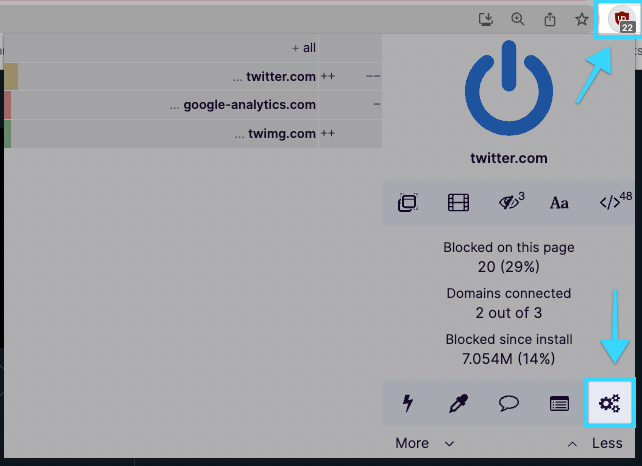
Once installed, click the uBlock Origin button in your browser toolbar and select the 'Dashboard' icon (looks like three cogs). On the dashboard page, select 'My Filters' from the top bar.
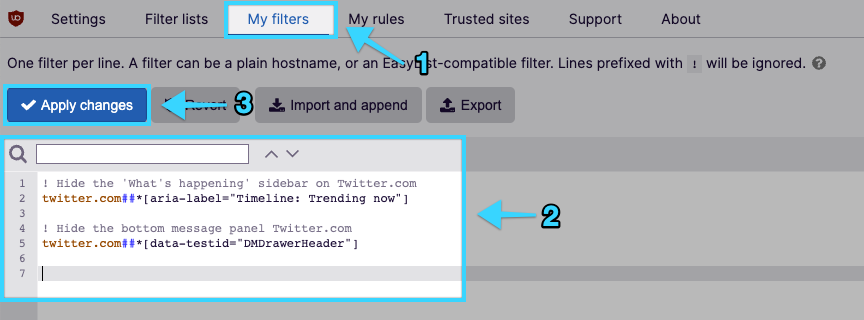
The 'My Filters' page will show a large text box. You may find it empty or populated with custom rules you have already created. We're able to add to this list to block any elements we please. Simply paste in your desired filters from the filter rules section below and select 'Apply Changes' when done.
Filter Rules
Twitter's dynamically generated HTML & CSS classes can make targeting specific elements a little fiddly. Fortunately, there are a number of accessibility labels and other fingerprints we can target to purge the website of unwanted features.
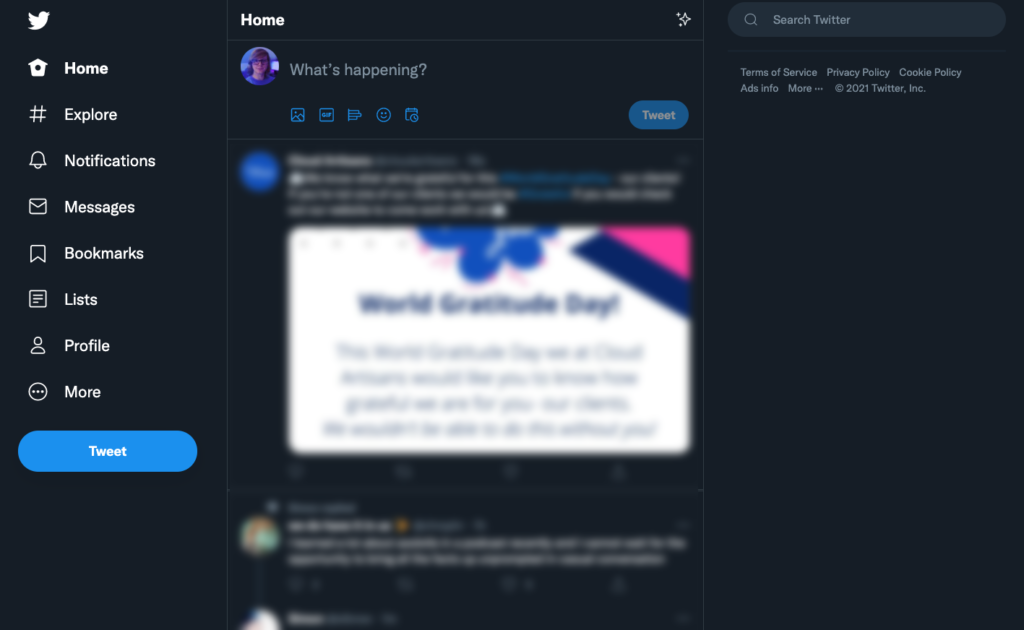
Hide the 'What's happening' sidebar on Twitter
Add the following filter rule to your uBlock configuration as per the instructions above.
! Hide the 'What's happening' sidebar on Twitter.com
twitter.com##*[aria-label="Timeline: Trending now"]
Hide the 'Topics to follow' sidebar on Twitter
! Hide the 'Topics to follow' sidebar on Twitter.com
twitter.com##*[aria-label="Timeline: "]
Hide "Who to follow" sidebar on Twitter
! Hide the 'Who to follow' sidebar on Twitter.com
twitter.com##*[aria-label="Who to follow"]
Hide everything in sidebar except search bar
! Hide everything in sidebar except search bar on Twitter.com
twitter.com##*[data-testid="sidebarColumn"] aside
Hide the bottom messages panel on Twitter
! Hide the bottom message panel Twitter.com
twitter.com##*[data-testid="DMDrawerHeader"]
Disable the Twitter "Chirp" font
Not a fan of the Twitter font? Add the following URLs to your filters list in uBlock to block it from loading and revert back to a default font.
https://abs.twimg.com/fonts/chirp-regular-web.woff
https://abs.twimg.com/fonts/chirp-medium-web.woff
https://abs.twimg.com/fonts/chirp-heavy-web.woff
https://abs.twimg.com/fonts/chirp-bold-web.woff
Hope that helps!
Please leave a message in the comments if it works for you and if you'd like any other tweaks to Twitter or any other websites using this method.
